AAS Development Guide
This guide is focused on the development of the AAS model.
Important
If the necessary tools for SMIA have not been installed and configured correctly, please follow the guide Installation Guide before proceeding.
The development of the AAS model will be realized using the AASX Package Explorer, so it is necessary to open this program.
Building the AAS environment
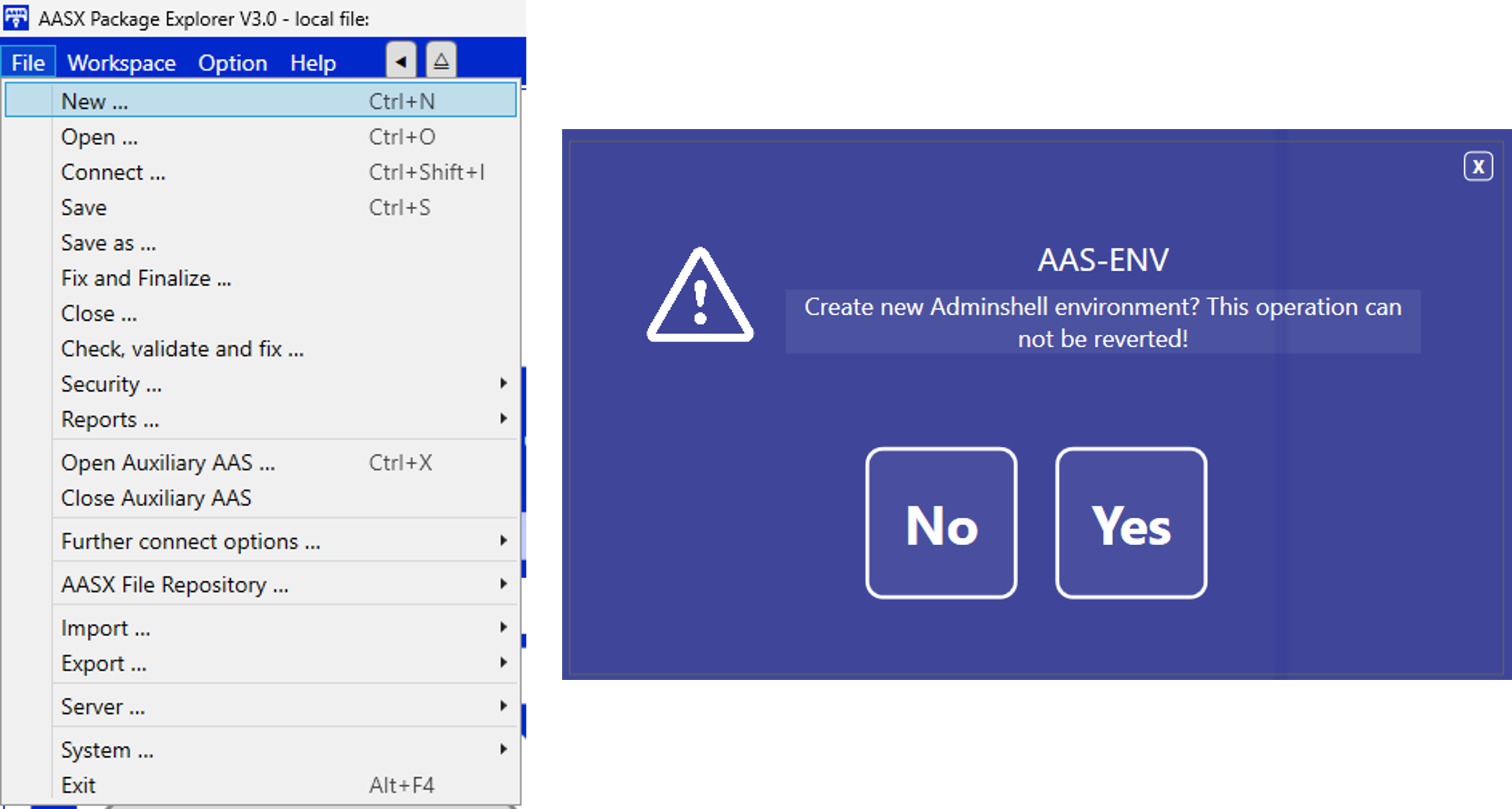
After opening the program, the first step is to create a new environment in order to add the desired definition of the AAS model.
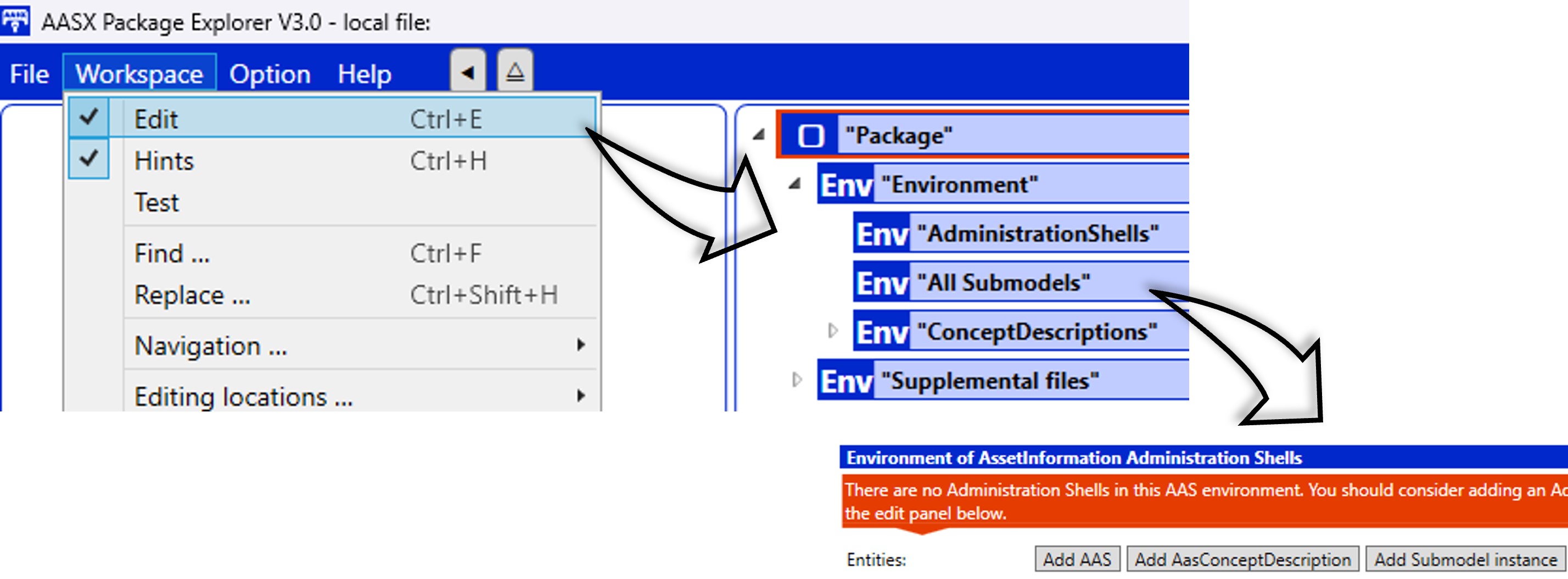
The next step is to enable edit mode, which can be found in Workspace > Edit. Once enabled, you will see the AAS environment structure, which is currently empty.
Important
Due to a bug in AASX Package Explorer, it is recommended to add an empty AAS, a submodel and a ConceptDescription before proceeding to the next step. Afterwards, once the initial steps have been completed, they can be deleted without any problem.
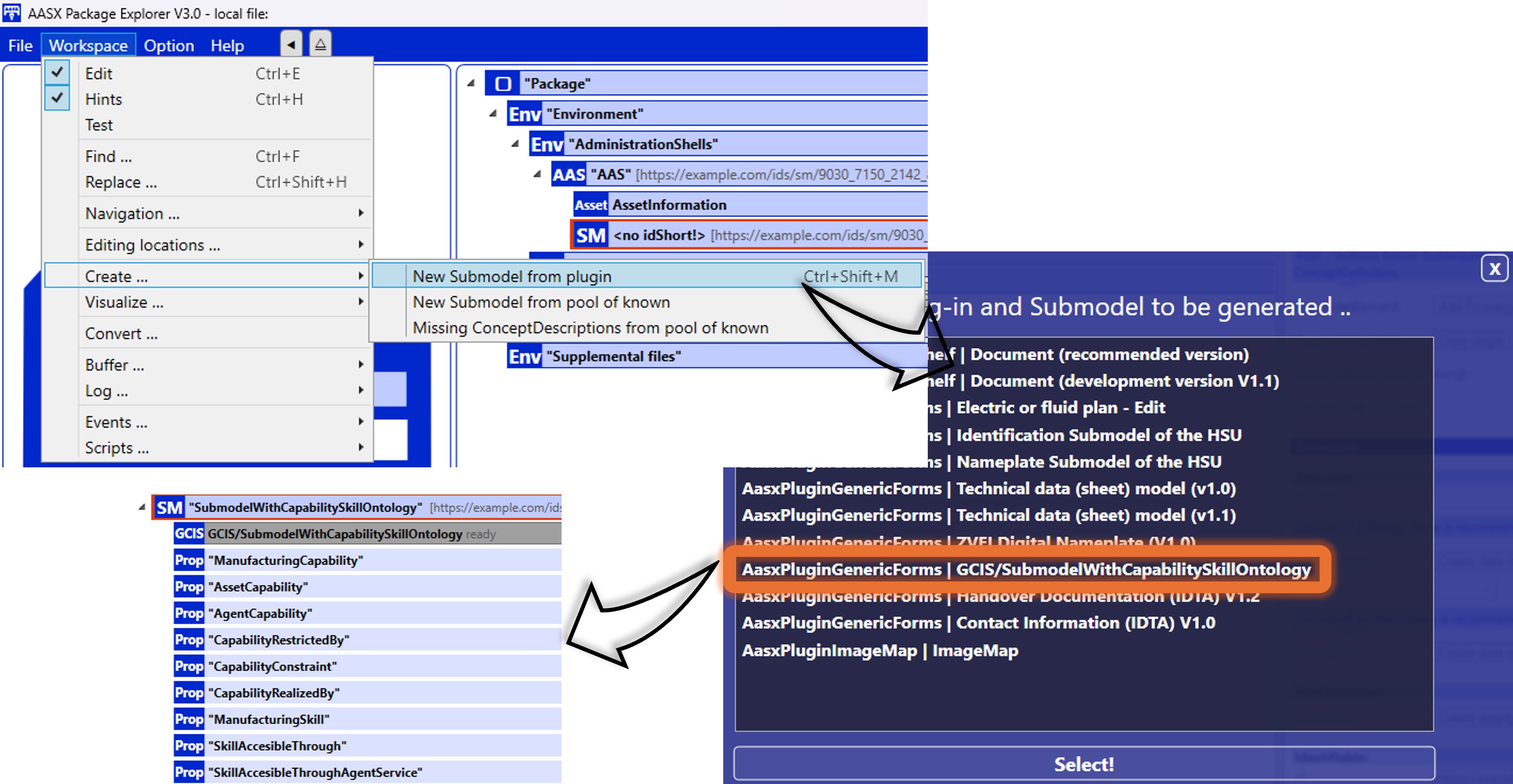
Now we can add the SMIA submodel to import all semantic identifiers based on the CSS ontology (which has been pre-added in the installation of the tool as shown in Installation Guide).
To do this, simply click on the AAS to be added, and use either the keyboard shortcut (Ctrl + Shift + M) or the program interface (Workspace > Create ... > New Submodel from plugin). In either case, a list of submodels to import will appear, from which GCIS/SubmodelWithCapabilitySkillOntology must be chosen.
Tip
If the AAS is not selected before selecting the submodel via the plugin, the program will present an error. Make sure that the AAS to which the submodel is to be added is selected.
IDTA template submodels will be added following the same process (Asset Interfaces Description and Nameplate for Software in Manufacturing).
Tip
It is not limited to which AAS the submodels should be included, but the following structure is recommended:
Asset Interfaces Description AAS for asset
Nameplate for Software in Manufacturing AAS for SMIA
Defining asset interfaces
All interfaces of the asset will be defined in the AssetInterfacesDescription submodel, proposed by IDTA. The specification document, as well as the GitHub repository of the submodel template, are available in the offered links.
Developing CSS-based the AAS model
The definition of the AAS model is not limited in the SMIA approach. Any Submodel and Submodel Element can be added following any structural decision. When it is desired to link a Submodel Element to a concept within the CSS ontology, it is only required to add the appropriate identifier as an attribute, specifically in the semantic identifier attribute (semanticid). Since both concepts and the relationships between them can be defined in the ontology, two options will be detailed in the following subsections.
Linking AAS elements to ontological concepts
As mentioned, the connection between the AAS model and the OWL-based CSS model is made through semantic identifiers. The steps to link an element of the submodel within the AAS model with a concept defined within an ontology are as follows:
Locate the concept within the ontology: locate the concept to be added in the AAS model and check the IRI value. The Protégé software can be used for this, as it is an OWL-based ontology editor and viewer.
Select the AAS element: decide which is the AAS element to be linked, and navigate to it using the AASX Package Explorer tool.
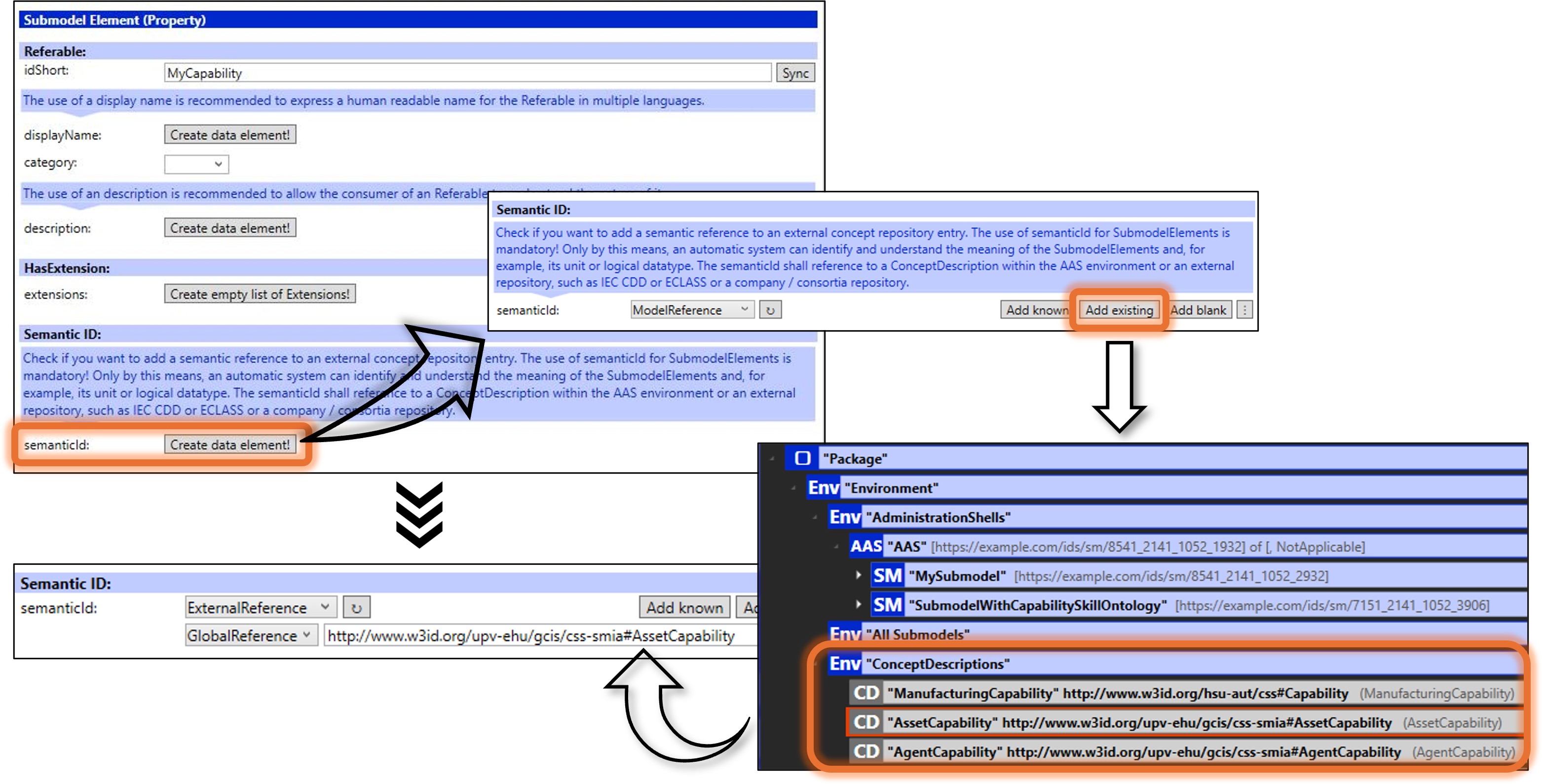
Add the semantic identifier: to do this, make sure that the AAS element is clicked, then click on Create data element and Add existing in semanticid` section. When the AAS tree is displayed, navigate to the ConceptDescription associated with the desired concept (the IRI can be used to check it, as it will be the same as the id of the ConceptDescription). When the concept is selected, the
semanticidwill be updated. This process is show in the following figure:
Linking AAS elements within ontological relationships
The relationships between concepts within an ontology can also be transferred to the AAS model, i.e., semantic identifiers can also be used to point out relationships between ontological concepts. To do so, the steps to follow are:
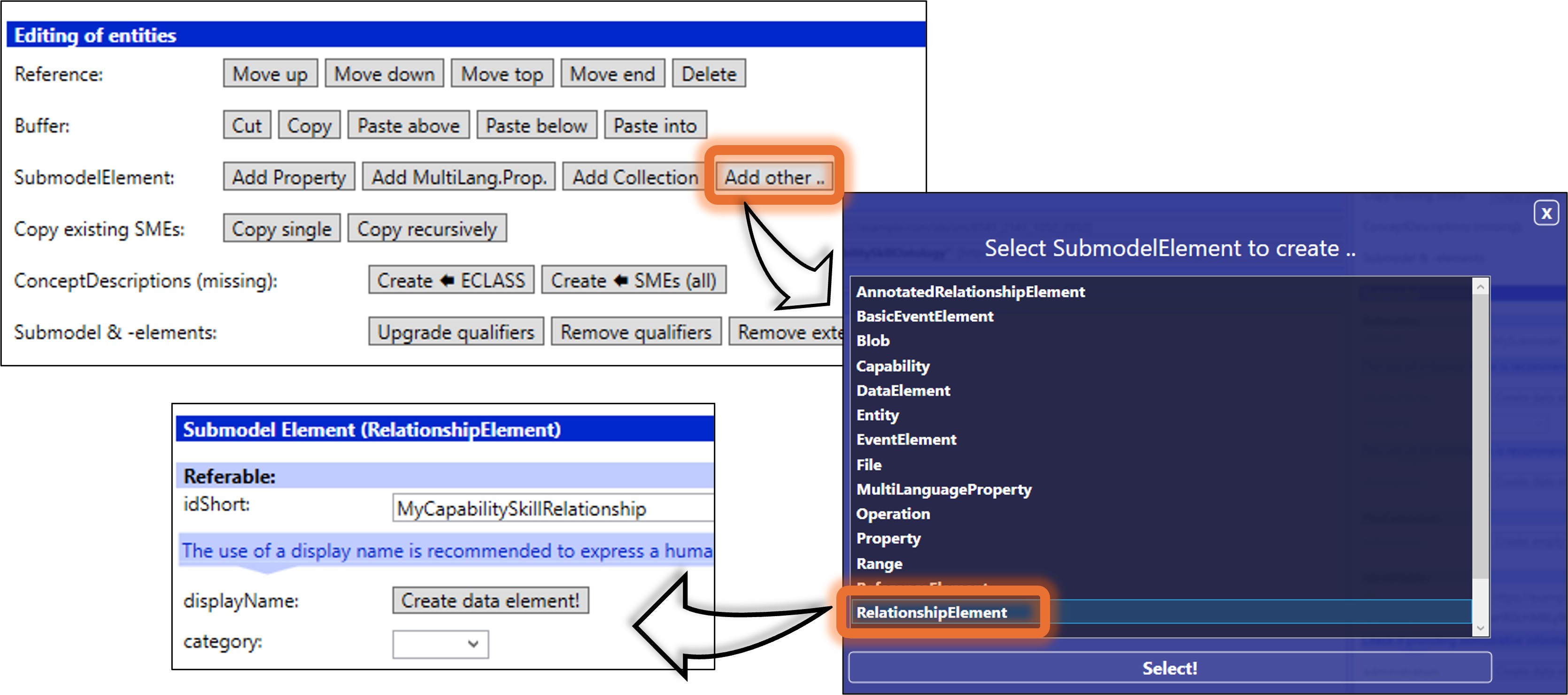
Create an AAS Submodel Element of type relationship: decide the location where the new Submodel Element will be created by clicking on the submodel (or collection or list). Click Add other.. in
SubmodelElementsection and, when the options are displayed, clickRelationshipElement. The new SubmodelElement will be create, as shown in the following figure:
Add the semantic identifier: following the same procedure explained in the previous subsection, add the
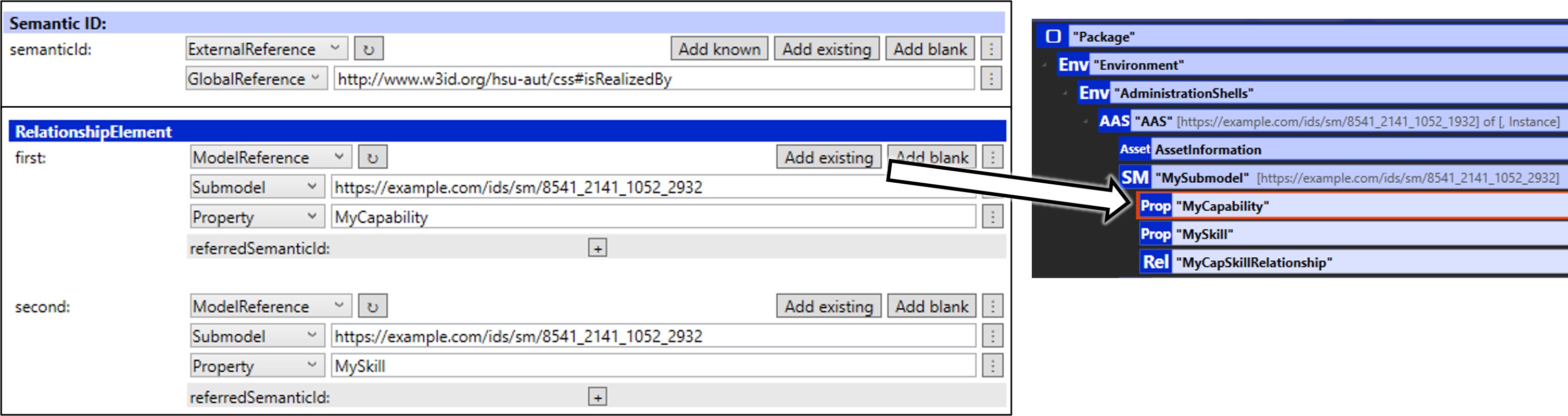
semanticidof the ontological relationship.Add the related AAS elements: select the AAS elements that are part of the relationship using Add existing.